Reliable home wifi network setup for speed, coverage, and cost
A reliable home Wi-Fi network setup starts with enough internet speed for the household and a network designed to carry the signal where it’s needed. For most smart homes, 100 to 300 Mbps may be sufficient, while households with several users and high-demand devices may benefit from 500 Mbps to 1 Gig. More speed alone won’t fix weak coverage or unreliable connections.
A reliable home Wi-Fi network setup starts with the right router location, enough coverage, and a connection that can handle your household’s devices. This guide explains how to match internet speed to your needs, improve coverage with practical equipment choices, and understand what affects internet and equipment costs. You’ll also learn when a coordinated network design can help connected devices and spaces work together reliably.
Key Takeaways
- Match internet speed to household demand: smart homes with more users and high-demand devices may need a faster connection.
- Use wired connections for devices that benefit from consistent performance, and consider how upload needs affect cameras and cloud backups.
- Improve coverage by placing network equipment thoughtfully; mesh systems can create a unified connection across the home.
- Understand how internet availability, plan choice, and equipment needs shape the overall cost, without assuming more speed alone will solve connection problems.
- Consider professional networking help when coverage, device connections, and connected home systems need to work together as one planned setup.
How Much Internet Speed Does a Smart Home Need?
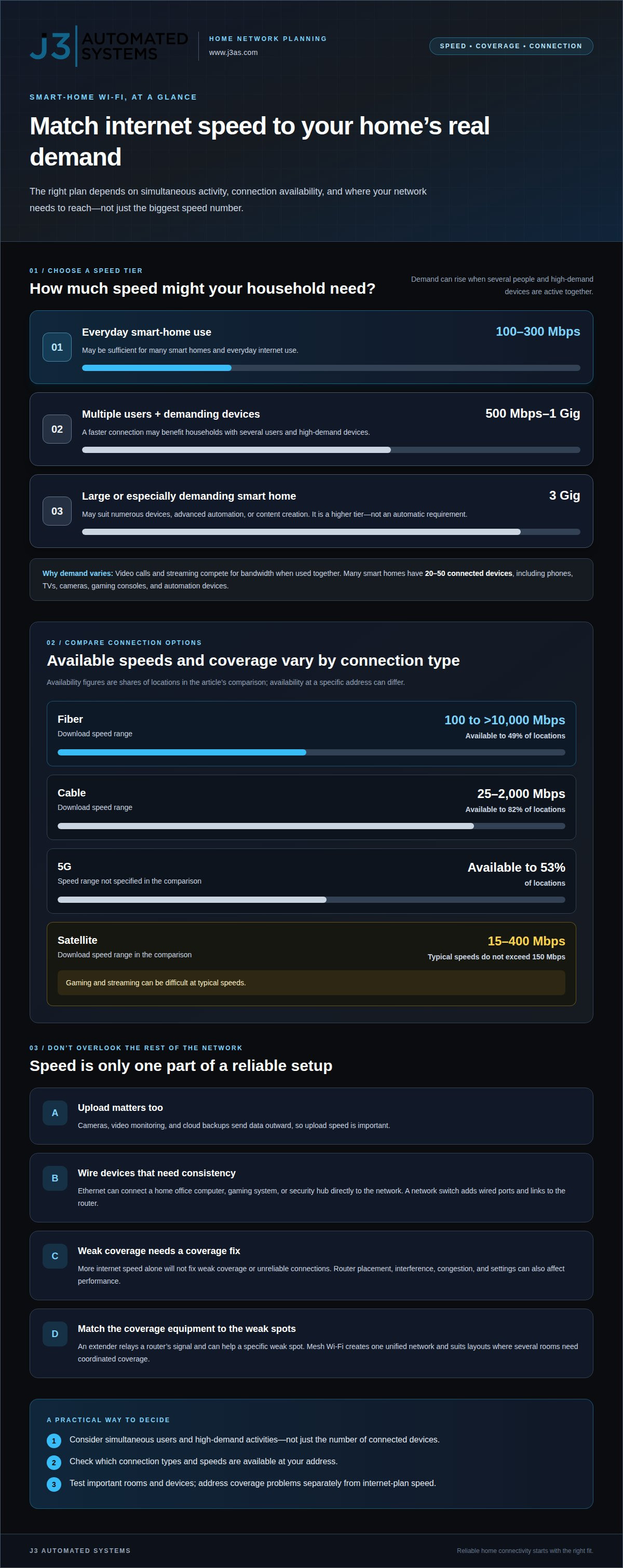
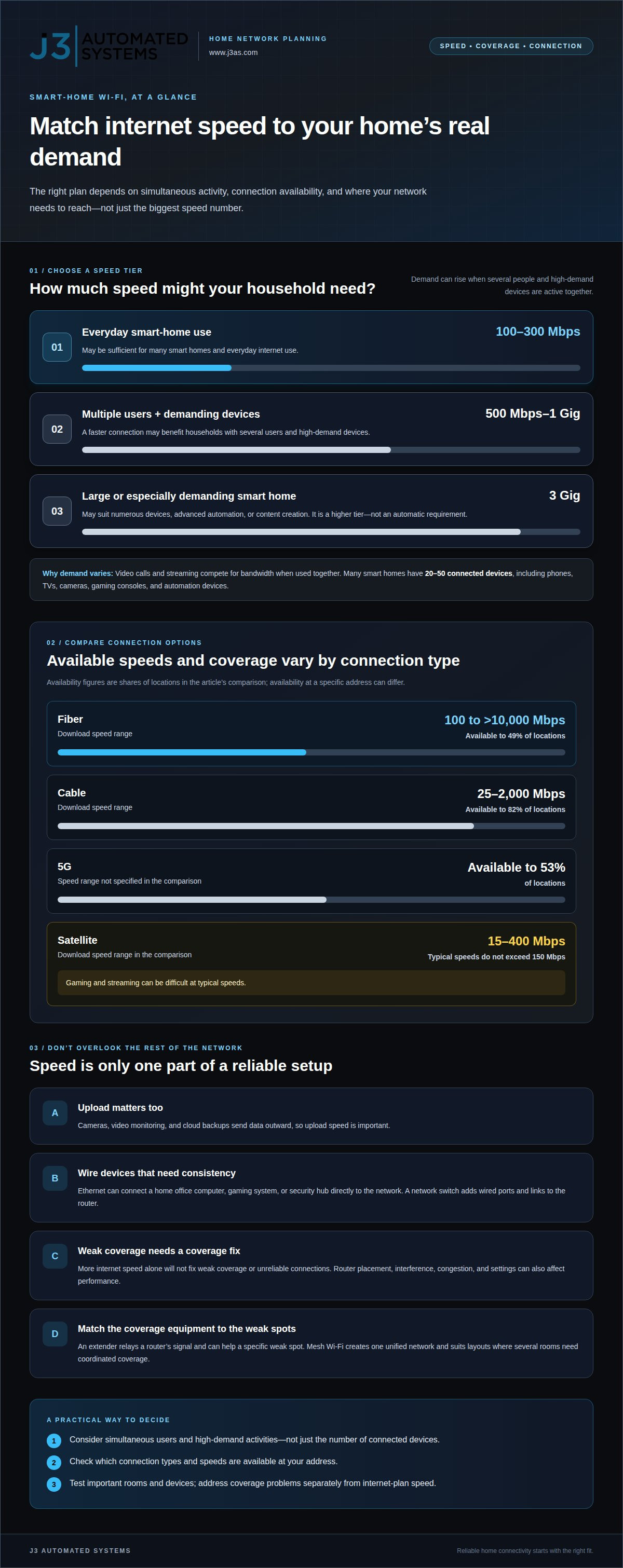
For many smart homes, 100 to 300 Mbps can support everyday internet use. Households with multiple users and demanding devices may need 500 Mbps to 1 Gig. The right plan depends on simultaneous activity, not simply the number printed on the package.
A household can have 20 or more connected devices, and many smart homes have 20 to 50. Phones, televisions, cameras, gaming consoles, and automation devices share network capacity. Video calls and streaming compete for bandwidth when used together. Cameras, video monitoring, and cloud backups also send data outward, making upload speed important.
To set up home Wi-Fi, connect the modem to your internet service, then connect the router to the modem with an Ethernet cable. Configure the router, choose a network name and password, and connect your devices. Test important devices in the rooms where you’ll use them.
Connection type shapes the speeds available. Fiber download speeds range from 100 Mbps to more than 10,000 Mbps, and fiber is available to 49% of locations in the comparison. Cable offers 25 to 2,000 Mbps and is available to 82% of locations. 5G is available to 53% of locations. Availability varies by address, so the connection type alone doesn’t establish what a household can get.
Satellite offers download speeds from 15 to 400 Mbps in the comparison, but typical speeds don’t exceed 150 Mbps. That can make gaming and streaming difficult. For large smart homes, numerous devices, advanced automation, or content creation, 3 Gig may suit greater demand. It’s a higher tier, not an automatic requirement for every home.
Wired connections can reduce reliance on Wi-Fi for devices that need consistent performance. Connect a home office computer, gaming system, or security hub directly to the network with Ethernet. If you need more wired connections, a network switch adds ports and links to the router. This leaves Wi-Fi available for devices that need mobility.
Slowdowns can result from congestion, nearby network interference, or router settings. When speeds fall below expectations, review the connected devices, nearby networks, and router settings. If a home office computer slows during gaming or streaming, test its wired connection separately. A slow wired connection can point to the internet service or router, rather than Wi-Fi coverage alone.
Some advanced users create a separate Wi-Fi network for smart-home devices. This can help manage congestion, security, and troubleshooting. Use a strong password and encryption, choose a unique network name, and turn off remote access to help reduce security risks. A reliable home Wi-Fi network setup brings the internet plan, wired connections, and wireless devices in line with your household’s actual needs.
Improving coverage with extenders or mesh networks
Test Wi-Fi speed, coverage, and reliability with the same device and speed test in each room. Record the results and any dropouts. After adjusting equipment placement, compare results in a central room and more distant rooms.
Extenders and Mesh Wi-Fi
A Wi-Fi extender relays a router’s signal, while a mesh system creates one unified network across the home. An extender can help with a specific weak spot, such as a bedroom beyond the router’s reach. Mesh Wi-Fi is suited to layouts where several rooms need coordinated coverage. Choose based on where the signal weakens and how much of the home needs coverage.
Mesh Coverage and Dead Zones
A dead zone is an area where the Wi-Fi signal is too weak for dependable use. Mesh Wi-Fi uses connected units to extend a unified network into rooms beyond the main router’s reach. For example, placing a mesh unit between the router and a distant office can help extend coverage. Placement can affect how well a mesh system extends coverage through the home.
Start with the router’s position. Place it in a central, open location, not inside a cabinet or beside large metal objects. A router hidden behind a television or pushed into a corner may distribute its signal unevenly. In a two-story home, test both floors instead of assuming the room next to the router represents overall coverage.
Test one room at a time with the same phone or laptop. Run a speed test near the router, then repeat in a distant bedroom, home office, or patio. Record download and upload results as well as interruptions, such as a video call freezing. Comparing results helps distinguish weak coverage in one area from a connection problem affecting the whole home.
If one room consistently performs poorly, move the router before adding equipment. Retest the same spots after relocating it. Keep the router clear of cabinets and large metal objects, which can interfere with coverage. If several separated rooms remain weak, a mesh system may extend the network more consistently.
An extender can help when the weak area is limited and the extender can receive a useful signal from the router. Placing it in the dead zone itself may not solve the problem: it needs a signal strong enough to relay. Test the intended location before and after installation, then check whether the weak room’s connection improves.
Make a simple coverage map: list the rooms, note where performance drops, and mark the router and any mesh units. Compare the same locations after each adjustment. If the connection remains unstable throughout the home, rather than in one distant room, placement or additional coverage may not address the underlying issue. This helps you determine whether the problem is local or network-wide.
Internet availability, pricing, and equipment costs
Internet options and total costs depend on your address, connection type, plan, and equipment. Separate recurring service charges from upfront costs for a modem, router, or installation.
Internet Availability and Costs
Availability means which internet connection types can serve a specific address, while costs include service and equipment. Fiber, cable, 5G, and satellite differ in availability and speed ranges, so a nearby household may have different choices. The comparison lists cable and fiber-backed internet speeds of 300 Mbps to 1 Gig, but location determines which plans are offered.
Build your household budget around the recurring internet plan and any equipment charges. A modem or router may be purchased or rented, and installation or contract terms can affect the total cost. Network design and installation costs depend on the home, its layout, equipment, and connection requirements.
Matching an Internet Plan to Household Needs
Choose an internet plan based on simultaneous activity, connected devices, and upload needs, not just the highest advertised speed. A household with one person browsing and streaming has different needs from one combining video calls, gaming, and camera uploads. Consider expected use during busy periods, when multiple devices may share the connection.
For a smart home, internet speed is only part of the picture: the router and signal coverage also affect performance. Cameras and cloud backups send data outward, so upload capacity matters alongside download speed. A plan’s listed speed is a useful starting point, but household use and connection quality determine how well it supports daily routines.
Choosing a Modem and Router
A modem connects the home to internet service, while a router distributes that connection to wired and wireless devices. A gateway combines both functions. This distinction helps you estimate equipment needs: your home may use a separate modem and router or one combined gateway.
Before selecting equipment, identify the connection type and the devices it must support. A modem must work with the chosen service, while router capability affects wireless coverage and connected-device handling. For a home with several smart devices, Wi-Fi 6 or newer is recommended for routers intended to support many devices, and consulting technology review guides from SuggestMeTech can make comparing specific hardware options easier.
Compare plans using the same criteria: available connection types, download and upload speeds, service charges, and equipment requirements. A plan with higher download speeds may not solve the problem if camera uploads are constrained or the router cannot reach a distant room. Consider all these needs before changing plans or replacing equipment.
Equipment costs also depend on your network design. If you use Ethernet for selected devices, you may need a router with suitable wired connections or a network switch. Broader wireless coverage may require additional network equipment. Match purchases to your actual connection layout rather than choosing hardware by its speed label alone.
Wi-Fi equipment: modems, gateways, routers, and extenders
A modem connects internet service to the home, and a router distributes that connection to devices. Choosing equipment as a system helps align wireless capacity, coverage, and security.
Router Firmware and Network Management
Router firmware is its built-in software, and keeping it updated supports network maintenance. Best Buy recommends regularly updating router firmware to help improve home Wi-Fi speed and reliability. Network management also means reviewing connected devices and settings when performance changes. For example, if streaming slows after several devices join, checking the router’s device list can help identify congestion.
Keep track of changes, such as adding a camera or moving the router. This context can help distinguish a coverage issue from a setting or device problem. Review the router’s administration settings periodically, and include firmware updates in routine upkeep. A reliable network depends on equipment that is maintained as household needs change.
Router Technology and Security
Router capacity describes how well the router handles the devices and activity sharing the network. A home with phones, televisions, cameras, and computers places different demands on a router than one used for occasional browsing. Choose equipment suited to the connected-device load, not just its headline speed. Place the router centrally with a clear signal path.
Security settings matter because every connected device relies on the network. Use a strong password and encryption, choose a unique network name, and turn off remote access to help reduce security risks. These settings help keep network access under household control. Review them during initial setup and whenever you change equipment.
Wi-Fi Generations and Multiband Routers
Wi-Fi generations identify successive versions of wireless technology, while multiband routers use multiple frequency bands to serve connections. For routers intended to support many smart-home devices, Wi-Fi 6 or newer is recommended. Wi-Fi 7 is a later generation, but a newer label alone doesn’t establish whether a router suits a particular home.
Consider device compatibility, how many devices will connect, and where coverage is needed. Older devices may not support every newer feature. Multiband equipment can distribute connections across bands, but placement and the home’s layout still affect coverage. Match the router to the devices you use now and expect to connect.
The equipment chain determines how the internet reaches each room. A modem handles the service connection; a gateway combines modem and router functions. A separate router distributes the signal, while an extender relays it into a weak area. Understanding these roles helps explain why replacing a router may not solve a problem originating with the modem or internet service.
Before replacing equipment, identify where the problem occurs. If wired and Wi-Fi devices both slow down, examine the modem and internet connection. If a device works near the router but struggles farther away, focus on wireless coverage. If only one device has trouble, check its connection and compatibility before changing the whole network.
Choose equipment as a coordinated system, then configure the network name, password, and security settings. Keep the router in a central, open location and note which devices depend on it. When a new camera or television joins, review performance and connected-device settings. These steps make equipment choices more deliberate and troubleshooting easier.
Professional home networking assistance
Professional help can be useful when changing your internet plan or moving the router hasn’t resolved recurring problems. A specialist can assess the whole Wi-Fi system and distinguish service interruptions from weak coverage, interference, equipment limits, or configuration issues. Each cause calls for a different response. Adding equipment to address the wrong cause can add complexity without fixing the disruption.
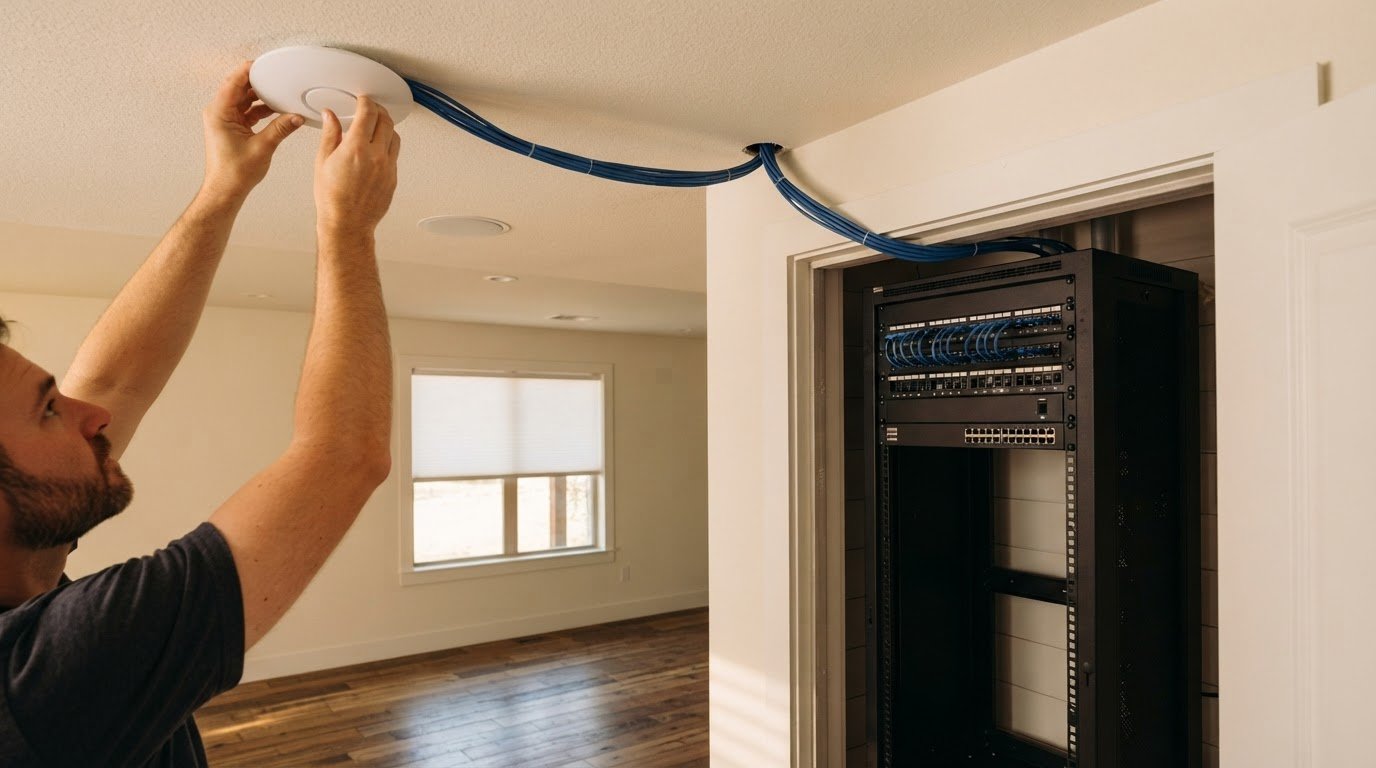
A useful assessment starts with the home’s layout and how people use each space. A home office may need a steady connection for calls, while cameras rely on dependable connectivity where they’re installed. A specialist can map these use areas against signal performance, identify dead zones, and plan equipment placement around the building rather than relying on a router’s advertised range.
Testing should cover more than one room. A specialist can measure performance near the router, in a distant bedroom, and where video calls or streaming regularly drop. They can also compare wired and wireless connections. If Ethernet works well but a distant room struggles, coverage may be the issue; if both connection types slow down, the investigation can shift to the modem, router, or internet service.
Network design also considers how devices work together. A home with streaming, cameras, and automation, for instance, may need careful equipment placement, wired connections for selected devices, and a coordinated mesh system. Teams specializing in residential setups, such as KINETIX IT Infrastructure, optimize network design around floor plans, construction materials, device locations, and household activity. This joined-up approach is more useful than treating every disconnection as an isolated device fault.
Professional help can also bring connected home systems into the network plan. Whole-property audio, for example, depends on reliable connectivity throughout the areas where it operates. A specialist can plan for those requirements alongside everyday internet use, so one system doesn’t undermine another. This is especially relevant when several rooms have coverage issues or connected systems need reliable access.
Ongoing network management is part of a durable setup. A specialist can document equipment locations and configuration, review security settings, and incorporate firmware updates into maintenance. Best Buy recommends regularly updating router firmware to help improve speed and reliability. Clear documentation also makes future changes easier, such as adding a camera or changing how a room is used.
Consider professional help when dead zones persist across multiple areas, devices disconnect repeatedly, or network changes keep creating new problems. Bring a clear picture of affected rooms, devices, and times of day. That information gives the assessment a practical starting point. For a coordinated approach to home connectivity, explore resilient networking.
J3 Automated Systems: Cinema-grade home theater
J3 Automated Systems brings networking into the wider design of a connected home. When streaming, room coverage, and entertainment systems need to work together, resilient networking can support a more coherent foundation for a cinema-grade home theater.
This is a natural next step when you’re planning a dedicated viewing space or integrating entertainment with whole-property audio and automated lighting and shades. Rather than treating Wi-Fi as an isolated upgrade, consider how the network supports the rooms and systems you use every day. A good design starts with your priorities, your home’s layout, and how you want each space to function.
For help planning connected home systems around your needs, contact J3 Automated Systems.
Shape a network around the way you live
A connected home works best when its network supports the experience you want, rather than relying on a series of separate fixes. Consider which routines matter most, from focused work to entertainment and time spent throughout the home. Those priorities give future technology decisions a clear purpose.
Planning a reliable home Wi-Fi network setup can be part of a broader vision for how your home functions. When connectivity needs to serve several spaces and connected experiences, coordinated design can align the underlying systems with daily life. Start by defining what you want those spaces to make possible, then shape the technical plan around that goal.
J3 Automated Systems can help translate that vision into a considered home technology plan. Bring the priorities that matter to your household, whether you’re planning a new space or refining how an existing one works. A clear starting point makes the path forward more purposeful.
Contact J3 Automated Systems to discuss your home’s networking needs. Start with the experience you want to create, and move toward it with confidence.
Frequently Asked Questions
Mesh Wi-Fi or a Wi-Fi extender?
A mesh system is often a better fit when several areas need coordinated coverage; an extender may suit one isolated weak spot. A distant office with poor reception, for example, may benefit from an extender if it can receive a usable signal. If bedrooms on different floors also struggle, mesh can provide a more unified network. Test the weak areas after installation to see whether coverage improves.
Are Wi-Fi speeds slower than a wired (Ethernet) connection?
Wi-Fi can be slower or less consistent than Ethernet because wireless performance depends on signal strength, interference, and distance. A wired connection avoids those wireless variables, making it useful for a desktop used for video calls or a game console. Results still depend on the internet service, router, cables, and device capabilities. Comparing the same device’s wired and wireless performance can help isolate a Wi-Fi issue.
Does router location matter?
Yes. Router location affects how well its signal reaches rooms and devices. A router at one end of a home may leave a distant office or bedroom with weaker reception. In a multilevel home, test signal quality on each floor and in rooms used for calls, streaming, or connected devices. A central, open position gives the signal a more balanced path than a cabinet or enclosed corner.
Is wired or wireless better for smart homes?
A combination usually works best in a smart home: Ethernet for stationary devices that need consistent connectivity, and Wi-Fi for mobile or difficult-to-wire devices. For example, connect a home office computer with Ethernet while phones and portable speakers stay wireless. Cameras and automation devices need a dependable signal where they’re installed. Planning both connection types avoids asking Wi-Fi to serve every device in the same way.
What Is The Best Internet Setup for Smart Homes?
The best setup matches the internet plan, network equipment, and home layout to the devices and routines it supports. In a San Antonio home with cameras, streaming, and work calls, consider upload needs as well as download activity. Use wired connections for suitable stationary equipment, then plan wireless coverage for devices that need mobility. Keep the network secure and review performance when new devices are added.
What is a modem?
A modem connects a home network to internet service, while a router shares that connection with wired and wireless devices. Some homes use separate modem and router units; a gateway combines both functions. If a device works over Ethernet but Wi-Fi coverage is weak, for example, the router’s wireless reach may be the issue. Knowing which device performs each role makes troubleshooting and equipment decisions clearer.
What internet speed do I need for a reliable home Wi-Fi network?
Many smart homes can use 100 to 300 Mbps, while households with several users and high-demand devices may benefit from 500 Mbps to 1 Gig. The right internet speed depends on how many people stream, game, or join calls at once. Upload capacity also matters for cameras and cloud backups. If performance remains poor despite adequate speed, investigate coverage, congestion, and equipment instead of upgrading automatically.
How do I choose the right Wi-Fi router for my home size and devices?
Choose a router around the home’s layout, connected-device load, and the areas that need reliable access. A compact home with devices near the router has different coverage demands from a multilevel property with distant rooms. For routers intended to support many smart-home devices, Wi-Fi 6 or newer is recommended. Also consider whether one router can reach the needed spaces or whether the layout calls for a mesh system.